GLOMAX8K
Watching Glomax 8K on the biggest screen in your home is where the service really shines. The good news is that you do not need a dish, a rented box or a technician. In most cases you only need your smart TV, a compatible IPTV player app and the login details we send after you subscribe. This guide walks you through the process from start to finish and explains the settings that make the biggest difference to picture quality.
What you need before you start
- An active Glomax 8K subscription. Choose a plan on our pricing page; after payment we send your access details on WhatsApp.
- A smart TV that can install apps. Most Samsung (Tizen), LG (webOS), Android TV and Google TV models from the last several years can run IPTV players. Very old or entry-level TVs may struggle, in which case a streaming stick is a better option.
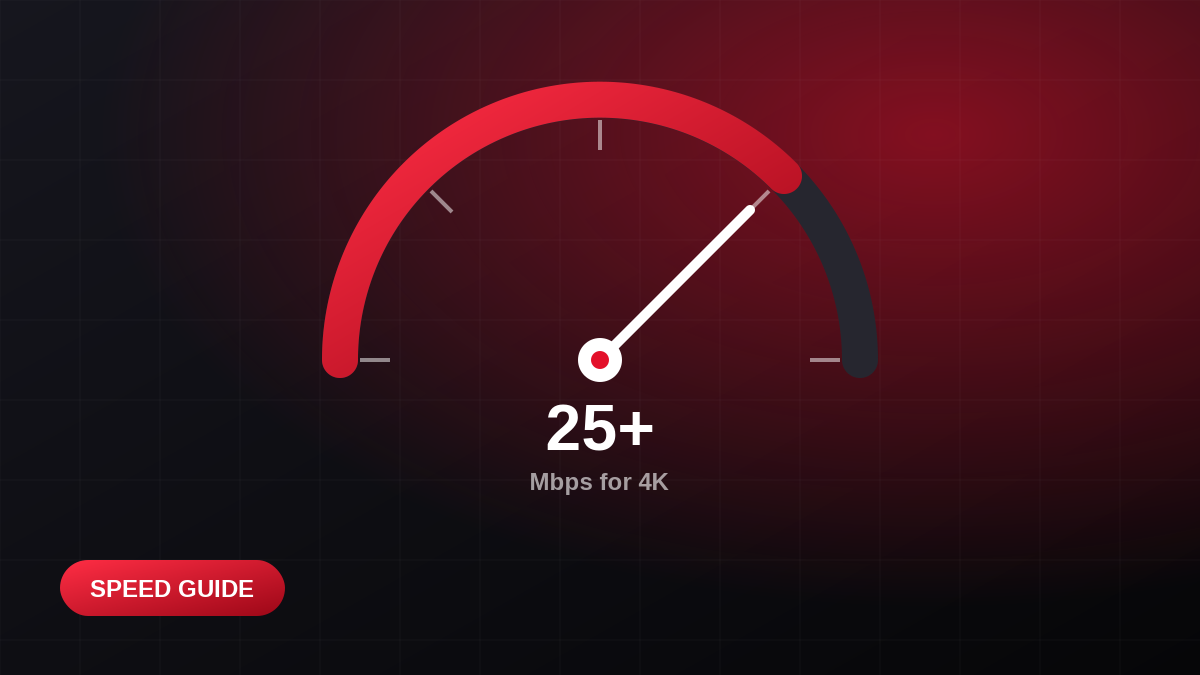
- A stable internet connection. Aim for at least 10 Mbps for HD and 25 Mbps or more for 4K. Read our internet speed guide if you are unsure.
- Your TV remote and about 10–15 minutes.
Understanding your login details
IPTV players accept a few different types of login. When you order, tell us which TV and app you plan to use and we will send the right format. You will usually receive one of the following:
- Xtream Codes–style login: a server URL, a username and a password. This is the most common option and works with many popular player apps.
- M3U playlist link: a single web address that contains the channel list. Some apps also ask for a separate EPG (TV guide) link.
- Device-based activation: some players show a device ID or MAC address on screen. You send it to us and we activate it on our side.
Step-by-step: setting up Glomax 8K on your smart TV
Step 1: Connect your TV to the internet
Open your TV’s network settings and connect to your home network. If your router is nearby, use an Ethernet cable: it is far more stable than Wi‑Fi for live TV. If you must use Wi‑Fi, choose the 5 GHz network when available, as it is usually faster and less crowded.
Step 2: Install a compatible IPTV player
Open your TV’s app store (Samsung Apps, LG Content Store or Google Play on Android/Google TV) and search for an IPTV player. Because app availability changes between regions and TV models, our team will recommend a player that is currently available and works well on your specific TV. Install it like any other app.
Step 3: Enter your Glomax 8K login
Open the player and choose the option to add a playlist or log in. Enter the details exactly as we sent them: the server URL, username and password are case-sensitive, and an extra space is enough to cause an error. If your app uses device activation, send us the device ID or MAC address it displays and wait for our confirmation.
Step 4: Let the channel list load
The first time you log in, the app downloads the channel list, the movie and series library and the TV guide. With a catalogue this large it can take a minute or two. Do not close the app while this is happening.
Step 5: Organise your favourites
With tens of thousands of channels available, favourites are essential. Most players let you mark channels with a star or long-press on the remote to add them to a favourites list. Spend a few minutes doing this and daily use becomes much faster. Many apps also let you hide categories you never watch.
Notes for popular TV platforms
Samsung (Tizen)
Samsung TVs use their own app store, which has a smaller selection of IPTV players than Android. Some players offer a short free trial period inside the app and then require a one-time activation fee paid to the app developer (not to Glomax 8K). If you would prefer not to deal with that, a streaming stick plugged into the TV is a good alternative.
LG (webOS)
The situation on LG is similar to Samsung. Install a player from the LG Content Store, then enter your login or activate your device. Keep webOS updated, as updates often improve video playback.
Android TV and Google TV
TVs from brands such as Sony, TCL, Hisense and Philips often run Android TV or Google TV. These give you the widest choice of player apps from Google Play and generally offer the smoothest setup. The steps are the same as in our Android box guide.
Getting the best picture quality
- Choose 4K versions only on 4K TVs. If your TV is Full HD, the FHD version of a channel will look just as good and use less bandwidth.
- Check the picture mode. Many TVs ship in a very bright “Vivid” or “Dynamic” mode. “Movie”, “Cinema” or “Filmmaker” modes usually show colours more accurately.
- Turn off motion smoothing for films if you dislike the “soap opera effect”. Keep it on for sports if you prefer smoother motion.
- Restart the TV occasionally. Many smart TVs only go into standby, so a full restart every few days clears memory.
Troubleshooting common problems
“Invalid login” or “authorisation failed”
Check every character of your login details, especially the server URL. Make sure there are no spaces at the beginning or end. If it still fails, send us a screenshot on WhatsApp.
Channels load but keep buffering
Switch to a wired connection if possible, restart your router and TV, and try the HD version of the channel. If only one channel is affected, it may be a temporary issue with that source; let us know which one.
No TV guide information
Some players need the EPG to be refreshed manually, and not every channel has guide data. Look for an “update EPG” option in the app settings.
Need a hand?
Our team helps customers set up Glomax 8K on smart TVs every day. If anything in this guide does not match what you see on screen, contact us or message us on WhatsApp with your TV brand and model, and we will guide you through it.